鸿蒙6.1新特性60fps人物行走动画开发常见问题与解决方案-鸿蒙PC版
欢迎加入开源鸿蒙PC社区:
https://harmonypc.csdn.net/
atomgit仓库地址:https://atomgit.com/2401_83963238/hongmengtexing61-renwuqianjinhoutou
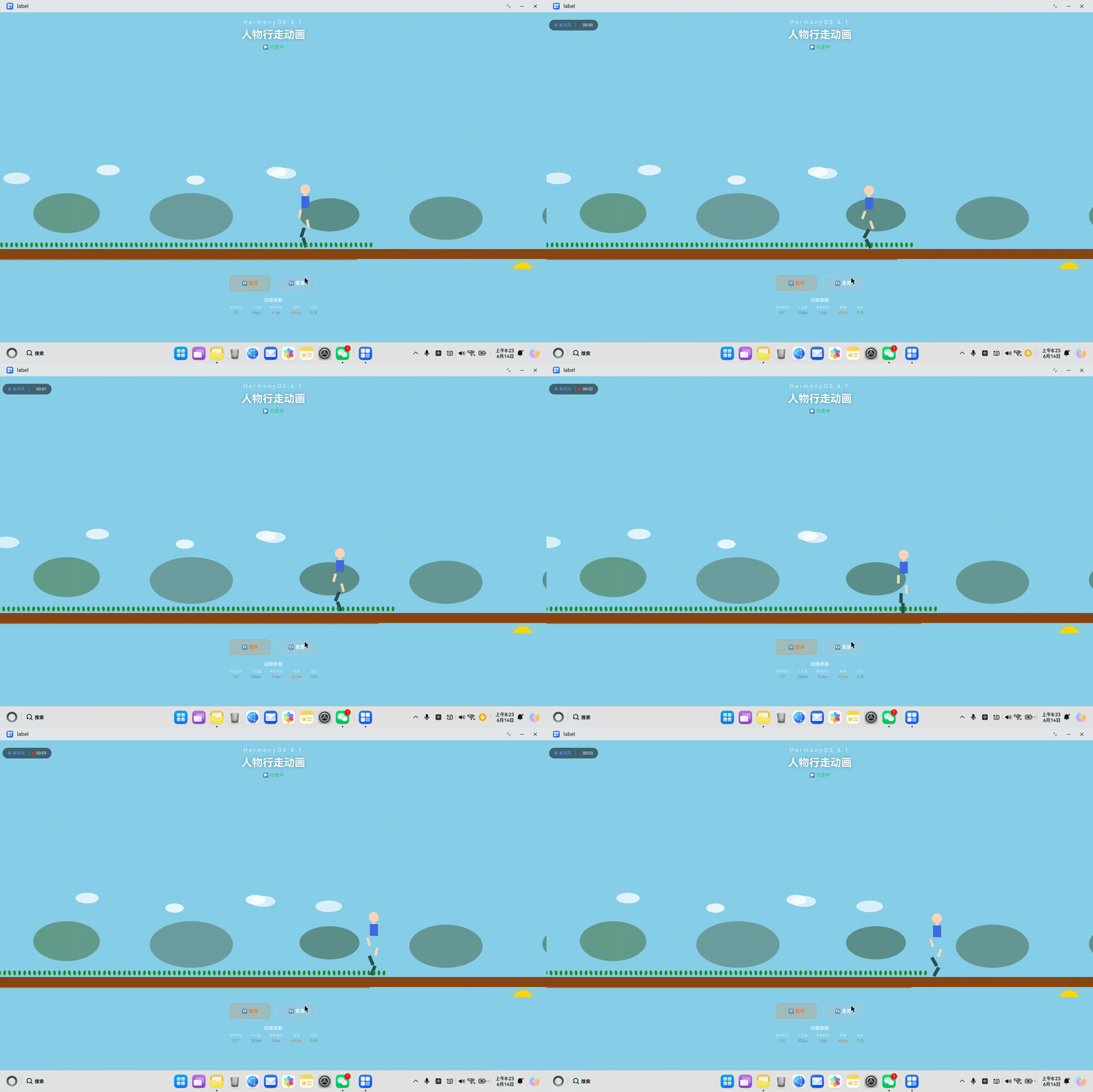
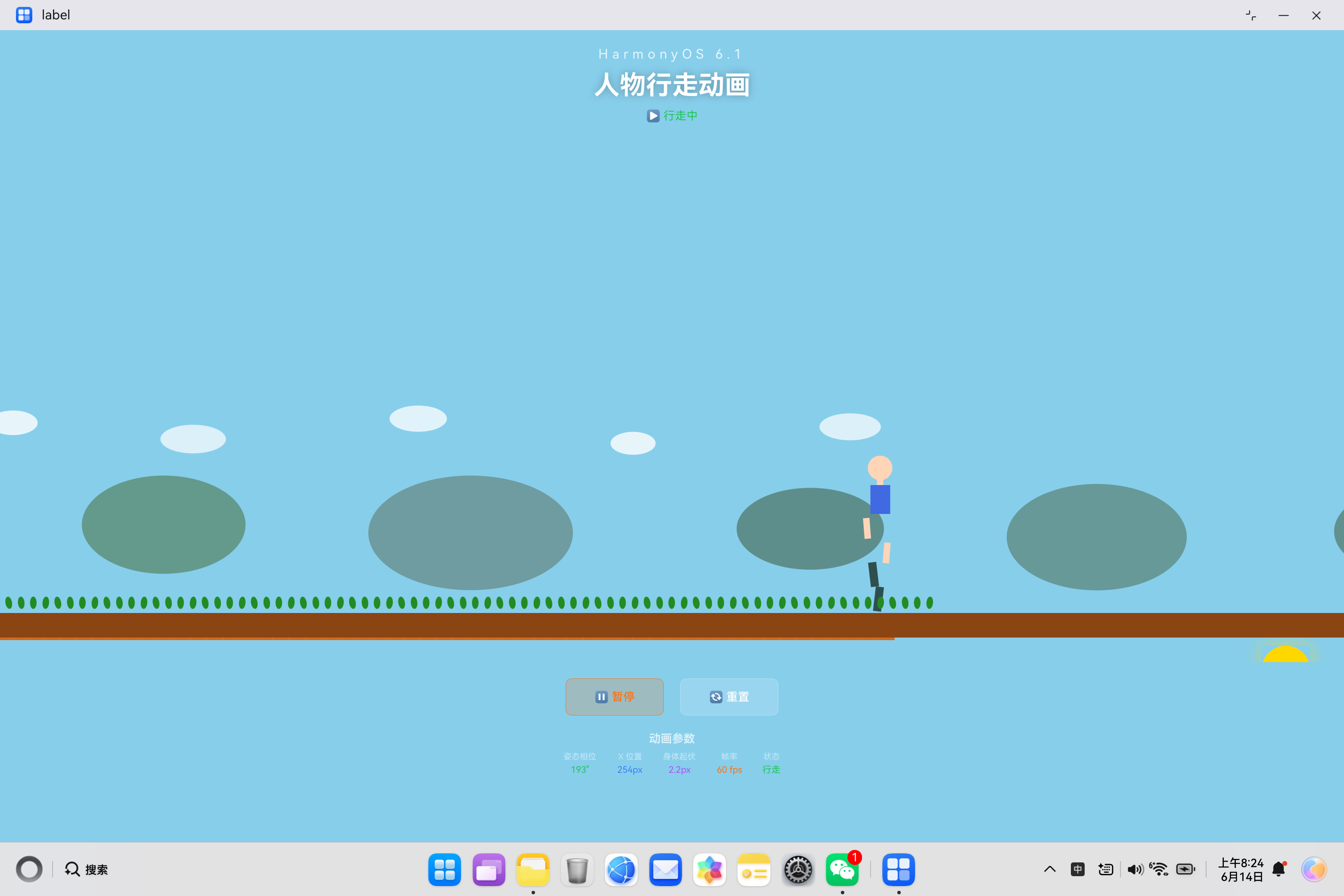
一、问题概述
人物行走动画是 HarmonyOS 6.1 应用开发中较为复杂的动画实现之一,涉及多个部件协调、多层场景渲染、多定时器管理等技术难点。本文档汇总了开发过程中可能遇到的各类问题及其解决方案。
1.1 问题分类统计
| 分类 | 问题数量 | 严重程度 | 发现阶段 |
|---|---|---|---|
| ArkTS 语法约束 | 5 | 🔴 高 | 编译时 |
| 定时器管理 | 4 | 🔴 高 | 编译时/运行时 |
| 数学计算 | 3 | 🟡 中 | 运行时 |
| 场景渲染 | 3 | 🟡 中 | 运行时 |
| 性能优化 | 2 | 🟢 低 | 运行时 |
| 总计 | 17 | - | - |
1.2 问题严重程度说明
| 级别 | 说明 | 影响 |
|---|---|---|
| 🔴 高 | 编译失败或运行时崩溃 | 应用无法运行 |
| 🟡 中 | 功能异常或性能下降 | 用户体验受损 |
| 🟢 低 | 代码质量或可维护性问题 | 长期维护困难 |
二、ArkTS 语法约束类问题
2.1 问题一:@Builder 中声明局部变量
问题描述:
在 @Builder 方法中声明局部变量会导致编译失败。这是人物行走动画开发中最常见的问题。
错误代码:
// ❌ 错误:在 @Builder 中声明局部变量
@Builder
buildWalkingCharacter() {
  let legAngle: number = this.leftLegAngle;  // 编译错误
  let armAngle: number = this.rightArmAngle;  // 编译错误
  let bodyOffset: number = this.bodyBob;  // 编译错误

  Stack() {
    Rect()
      .rotate({ x: 0, y: 0, z: 1, angle: legAngle });
  }
}
错误信息:
Error message: Only UI component syntax can be written here
This may be caused by:
- Statements that are not component creation expressions
- Local variable declarations
- Control flow statements (if, for, while, etc.)
解决方案:
// ✅ 正确:直接使用状态变量
@Builder
buildWalkingCharacter() {
  Stack({ alignContent: Alignment.Bottom }) {
    Column({ space: 0 }) {
      // 头部
      Circle()
        .width(30)
        .height(30)
        .fill('#FFD5B8');

      // 身体躯干
      Rect()
        .width(24)
        .height(35)
        .fill('#4169E1')
        .borderRadius(5)
        .translate({ y: -this.bodyBob });  // 直接使用状态变量

      // 左腿 - 直接使用状态变量
      Stack({ alignContent: Alignment.Top }) {
        Rect()
          .width(10)
          .height(30)
          .fill('#2F4F4F')
          .borderRadius(3)
          .rotate({ x: 0, y: 0, z: 1, angle: this.leftLegAngle });
      }
    }
  }
}
关键要点:
| @Builder 限制 | 说明 |
|---|---|
| ❌ 局部变量声明 | 不能使用 let、const |
| ❌ 条件语句 | 不能使用 if、else |
| ❌ 循环语句 | 不能使用 for、while |
| ❌ 非 UI 方法调用 | 不能调用普通方法 |
| ✅ UI 组件创建 | 只能创建 UI 组件 |
| ✅ 状态变量使用 | 可以直接使用 @State 变量 |
2.2 问题二:@Builder 中使用条件语句
问题描述:
在人物行走动画中,可能需要根据状态显示不同的部件,但 @Builder 中不能使用条件语句。
错误代码:
// ❌ 错误:在 @Builder 中使用条件语句
@Builder
buildCharacter() {
  if (this.isWalking) {  // 编译错误
    Rect().width(10).height(30);
  } else {
    Rect().width(10).height(30).opacity(0.5);
  }
}
解决方案:
// ✅ 正确:使用条件表达式或状态控制属性
@Builder
buildCharacter() {
  Rect()
    .width(10)
    .height(30)
    .opacity(this.isWalking ? 1 : 0.5);  // 使用条件表达式控制属性
}
2.3 问题三:数组类型声明不完整
问题描述:
人物行走动画中使用了多个数组(云朵位置、草地位置等),数组类型声明必须使用 Array<T> 格式。
错误代码:
// ❌ 错误:数组类型声明不完整
@State cloudPositions = [50, 200, 400];  // 隐式 any[]
@State grassPositions: number[] = [];  // 不支持的语法
错误信息:
Error: Array type declaration incomplete
Error: Use explicit types instead of "any", "unknown"
解决方案:
// ✅ 正确:使用 Array<T> 格式
@State cloudPositions: Array<number> = [50, 200, 400, 600, 800];
@State grassPositions: Array<number> = [];

// ✅ 正确:在方法中声明数组
getGrassPositions(): Array<number> {
  let positions: Array<number> = [];
  for (let i: number = 0; i < 80; i++) {
    positions.push(i * 25);
  }
  return positions;
}
2.4 问题四:类型转换错误
问题描述:
在计算动画参数时,可能需要进行类型转换,但 ArkTS 不支持某些类型转换方式。
错误代码:
// ❌ 错误:不支持的类型转换
let angle: number = this.walkPhase as number;  // 不必要的转换
let positions: any = this.cloudPositions;  // 使用 any 类型
解决方案:
// ✅ 正确:直接使用,无需转换
let angle: number = this.walkPhase;  // 已经是 number 类型

// ✅ 正确:显式类型声明
let positions: Array<number> = this.cloudPositions;
2.5 问题五:字符串拼接错误
问题描述:
在显示动画参数时,需要拼接字符串和数字,但 ArkTS 不支持模板字符串。
错误代码:
// ❌ 错误:使用模板字符串
Text(`${this.walkPhase}°`);  // 不支持
Text(`位置: ${this.characterX}px`);  // 不支持
错误信息:
Error: Template literal is not supported
解决方案:
// ✅ 正确:使用 + 拼接
Text(this.walkPhase.toFixed(0) + '°');
Text('位置: ' + this.characterX.toFixed(0) + 'px');
三、定时器管理类问题
3.1 问题一:定时器类型未声明
问题描述:
人物行走动画使用了多个定时器,定时器变量必须显式声明为 number 类型。
错误代码:
// ❌ 错误:定时器类型未声明
private walkTimer = setInterval(() => {}, 16);  // 隐式 any
private moveTimer;  // 未初始化
错误信息:
Error: Use explicit types instead of "any", "unknown"
Error: Property 'moveTimer' has no initializer
解决方案:
// ✅ 正确:显式声明类型并初始化
private walkTimer: number = 0;
private moveTimer: number = 0;
private groundTimer: number = 0;
private cloudTimer: number = 0;

aboutToAppear(): void {
  this.walkTimer = setInterval(() => {
    // 动画逻辑
  }, 16);
}
3.2 问题二:定时器未清理
问题描述:
人物行走动画使用了 4 个定时器,如果在组件销毁时不清理,会导致内存泄漏和性能问题。
错误代码:
// ❌ 错误:没有清理定时器
aboutToAppear(): void {
  this.walkTimer = setInterval(() => {
    this.walkPhase = this.walkPhase + 1;
  }, 16);

  this.moveTimer = setInterval(() => {
    this.characterX = this.characterX + 2;
  }, 30);

  this.groundTimer = setInterval(() => {
    this.groundOffset = this.groundOffset + 3;
  }, 20);

  this.cloudTimer = setInterval(() => {
    // 云朵移动逻辑
  }, 50);
}

// ❌ 没有 aboutToDisappear 方法
运行时问题:
- 内存泄漏:定时器回调持续执行,闭包变量无法释放
- 性能下降:多个页面切换后,定时器累积
- 状态混乱:旧页面的定时器继续更新已销毁组件的状态
- 应用崩溃:严重情况下可能导致应用崩溃
解决方案:
// ✅ 正确:完整生命周期管理
aboutToAppear(): void {
  this.startAllAnimations();
}

aboutToDisappear(): void {
  this.stopAllAnimations();
}

startAllAnimations(): void {
  this.walkTimer = setInterval(() => {
    if (this.isWalking) {
      this.walkPhase = this.walkPhase + 1;
    }
  }, 16);

  this.moveTimer = setInterval(() => {
    if (this.isWalking) {
      this.characterX = this.characterX + 2;
    }
  }, 30);

  this.groundTimer = setInterval(() => {
    this.groundOffset = this.groundOffset + 3;
    if (this.groundOffset >= 100) {
      this.groundOffset = 0;
    }
  }, 20);

  this.cloudTimer = setInterval(() => {
    let newPositions: Array<number> = [];
    for (let i: number = 0; i < 5; i++) {
      let newPos: number = this.cloudPositions[i] - 1;
      if (newPos < -100) {
        newPos = 900;
      }
      newPositions.push(newPos);
    }
    this.cloudPositions = newPositions;
  }, 50);
}

stopAllAnimations(): void {
  if (this.walkTimer > 0) {
    clearInterval(this.walkTimer);
    this.walkTimer = 0;
  }
  if (this.moveTimer > 0) {
    clearInterval(this.moveTimer);
    this.moveTimer = 0;
  }
  if (this.groundTimer > 0) {
    clearInterval(this.groundTimer);
    this.groundTimer = 0;
  }
  if (this.cloudTimer > 0) {
    clearInterval(this.cloudTimer);
    this.cloudTimer = 0;
  }
}
3.3 问题三:定时器频率设置不当
问题描述:
人物行走动画涉及多种动画类型,如果所有定时器都使用相同的频率,会导致性能浪费或动画不流畅。
错误代码:
// ❌ 错误:所有定时器都用 16ms
setInterval(() => { /* 姿态 */ }, 16);
setInterval(() => { /* 移动 */ }, 16);
setInterval(() => { /* 地面 */ }, 16);
setInterval(() => { /* 云朵 */ }, 16);
问题分析:
| 定时器 | 错误频率 | 问题 |
|---|---|---|
| 姿态动画 | 16ms | ✅ 合适(需要平滑) |
| 位置移动 | 16ms | ⚠️ 太高(浪费性能) |
| 地面滚动 | 16ms | ⚠️ 太高(浪费性能) |
| 云朵移动 | 16ms | ❌ 太高(云朵移动很慢) |
解决方案:
// ✅ 正确:根据动画需求设置频率
setInterval(() => { /* 姿态 */ }, 16);   // 60fps - 需要平滑
setInterval(() => { /* 移动 */ }, 30);   // 33fps - 不需要太高
setInterval(() => { /* 地面 */ }, 20);   // 50fps - 中等速度
setInterval(() => { /* 云朵 */ }, 50);   // 20fps - 移动很慢
频率选择原则:
| 动画类型 | 推荐频率 | 原因 |
|---|---|---|
| 高精度动画(姿态) | 16ms | 需要平滑过渡 |
| 中精度动画(移动) | 20-30ms | 视觉容忍度较高 |
| 低精度动画(背景) | 50-100ms | 移动很慢 |
3.4 问题四:定时器内缺少条件检查
问题描述:
定时器回调中如果不检查状态,可能导致动画在不应该运行时继续执行。
错误代码:
// ❌ 错误:定时器内没有条件检查
setInterval(() => {
  this.walkPhase = this.walkPhase + 1;  // 即使暂停也会执行
  this.characterX = this.characterX + 2;  // 即使暂停也会执行
}, 16);
解决方案:
// ✅ 正确:定时器内检查状态
setInterval(() => {
  if (this.isWalking) {  // 检查是否在行走状态
    this.walkPhase = this.walkPhase + 1;
  }
}, 16);

setInterval(() => {
  if (this.isWalking) {  // 检查是否在行走状态
    this.characterX = this.characterX + 2;
  }
}, 30);
四、数学计算类问题
4.1 问题一:角度与弧度混淆
问题描述:
Math.sin() 和 Math.cos() 接受弧度参数,不是角度。这是人物行走动画中最容易犯的错误。
错误代码:
// ❌ 错误:直接使用角度值
let legSwing = Math.sin(this.walkPhase) * 30;  // walkPhase 是角度
let armSwing = Math.sin(this.walkPhase) * 20;
问题分析:
walkPhase从 0 到 360 循环(角度)Math.sin(90)= sin(90弧度) ≈ 0.89,不是 sin(90°) = 1- 导致腿部摆动角度不正确
解决方案:
// ✅ 正确:角度转弧度
let legSwing: number = Math.sin(this.walkPhase * Math.PI / 180) * 30;
let armSwing: number = Math.sin(this.walkPhase * Math.PI / 180) * 20;

// 数学原理:
// 弧度 = 角度 × π / 180
// 90° = 90 × π / 180 = π/2 ≈ 1.5708 弧度
// sin(π/2) = 1
4.2 问题二:身体起伏计算错误
问题描述:
身体起伏应该使用 Math.abs() 确保始终为正值,否则会出现负值导致位置异常。
错误代码:
// ❌ 错误:没有使用绝对值
this.bodyBob = Math.sin(this.walkPhase * Math.PI / 90) * 5;
// 当 sin 值为负时,bodyBob 为负,人物会向上移动
解决方案:
// ✅ 正确:使用绝对值
this.bodyBob = Math.abs(Math.sin(this.walkPhase * Math.PI / 90)) * 5;
// 确保 bodyBob 始终为正值,人物只会向下起伏
4.3 问题三:相位计算错误
问题描述:
腿部和手臂的摆动应该相反,如果相位设置错误,会导致动作不协调。
错误代码:
// ❌ 错误:腿部和手臂同相位
this.leftLegAngle = Math.sin(this.walkPhase * Math.PI / 180) * 30;
this.rightLegAngle = Math.sin(this.walkPhase * Math.PI / 180) * 30;  // 同相位
this.leftArmAngle = Math.sin(this.walkPhase * Math.PI / 180) * 20;
this.rightArmAngle = Math.sin(this.walkPhase * Math.PI / 180) * 20;  // 同相位
问题分析:
- 左腿和右腿应该相反(一个向前,一个向后)
- 左臂和右臂应该相反
- 手臂和腿部应该相反(左腿向前时,左臂向后)
解决方案:
// ✅ 正确:使用负号实现相反相位
let legSwing: number = Math.sin(this.walkPhase * Math.PI / 180) * 30;
this.leftLegAngle = legSwing;       // 左腿:θ -> sin(θ)
this.rightLegAngle = -legSwing;     // 右腿:θ -> -sin(θ)

let armSwing: number = Math.sin(this.walkPhase * Math.PI / 180) * 20;
this.leftArmAngle = armSwing;       // 左臂:θ -> sin(θ)
this.rightArmAngle = -armSwing;     // 右臂:θ -> -sin(θ)
五、场景渲染类问题
5.1 问题一:场景层次叠加错误
问题描述:
人物行走场景包含多个层次(天空、云朵、太阳、山丘、人物、地面),如果层次顺序错误,会导致遮挡问题。
错误代码:
// ❌ 错误:层次顺序错误
Stack({ alignContent: Alignment.Bottom }) {
  this.buildGround();       // 地面在最底层
  this.buildWalkingCharacter();  // 人物在中间
  this.buildMountains();    // 山丘在人物上面(错误)
  this.buildClouds();       // 云朵在最上面
}
问题分析:
- Stack 中后添加的元素会覆盖前面的元素
- 山丘应该在人物后面,不是前面
- 正确顺序:天空 → 云朵 → 太阳 → 山丘 → 人物 → 地面
解决方案:
// ✅ 正确:按层次顺序添加
Stack({ alignContent: Alignment.Bottom }) {
  this.buildClouds();       // 最底层:云朵
  this.buildSun();          // 太阳
  this.buildMountains();    // 山丘
  this.buildWalkingCharacter();  // 人物
  this.buildGround();       // 最顶层:地面
}
5.2 问题二:视差滚动速度不协调
问题描述:
人物、地面、云朵的移动速度应该协调,否则会产生不自然的视觉效果。
错误代码:
// ❌ 错误:速度不协调
setInterval(() => { this.characterX = this.characterX + 10; }, 16);  // 人物太快
setInterval(() => { this.groundOffset = this.groundOffset + 1; }, 16);  // 地面太慢
setInterval(() => { this.cloudPositions[0] -= 5; }, 16);  // 云朵太快
问题分析:
- 人物移动太快,地面滚动太慢,感觉人物在飞
- 云朵移动太快,不符合远处的视觉效果
- 应该遵循近快远慢的原则
解决方案:
// ✅ 正确:协调的速度设置
// 人物移动:每 30ms 移动 2px(每秒 67px)
setInterval(() => { this.characterX = this.characterX + 2; }, 30);

// 地面滚动:每 20ms 移动 3px(每秒 150px,比人物快)
setInterval(() => { this.groundOffset = this.groundOffset + 3; }, 20);

// 云朵移动:每 50ms 移动 1px(每秒 20px,最慢)
setInterval(() => {
  for (let i: number = 0; i < 5; i++) {
    this.cloudPositions[i] -= 1;
  }
}, 50);
5.3 问题三:ForEach 使用问题
问题描述:
在渲染草地和道路纹理时使用 ForEach,如果数据源不正确会导致渲染问题。
错误代码:
// ❌ 错误:ForEach 数据源问题
ForEach(this.grassPositions, (item: number) => {
  Ellipse().width(8).height(15);
});

// 如果 grassPositions 是空数组或未定义,会导致渲染失败
解决方案:
// ✅ 正确:确保数据源有效
getGrassPositions(): Array<number> {
  let positions: Array<number> = [];
  for (let i: number = 0; i < 80; i++) {
    positions.push(i * 25);
  }
  return positions;
}

// 使用方法返回的数据
ForEach(this.getGrassPositions(), (item: number) => {
  Column() {
    Ellipse()
      .width(8)
      .height(15)
      .fill('#228B22')
      .rotate({ angle: (item % 20) - 10 });
  }
  .width(15)
  .height(20);
});
六、性能优化类问题
6.1 问题一:状态更新过于频繁
问题描述:
人物行走动画涉及多个状态变量,如果更新过于频繁会导致性能下降。
错误代码:
// ❌ 错误:每帧更新所有状态
setInterval(() => {
  this.walkPhase = this.walkPhase + 1;
  this.leftLegAngle = Math.sin(this.walkPhase * Math.PI / 180) * 30;
  this.rightLegAngle = -Math.sin(this.walkPhase * Math.PI / 180) * 30;
  this.leftArmAngle = Math.sin(this.walkPhase * Math.PI / 180) * 20;
  this.rightArmAngle = -Math.sin(this.walkPhase * Math.PI / 180) * 20;
  this.bodyBob = Math.abs(Math.sin(this.walkPhase * Math.PI / 90)) * 5;
  this.characterX = this.characterX + 2;
  this.groundOffset = this.groundOffset + 3;
  // ... 更多状态更新
}, 16);
解决方案:
// ✅ 正确:分离定时器,按需更新
// 姿态动画定时器(高频)
setInterval(() => {
  if (this.isWalking) {
    this.walkPhase = this.walkPhase + 1;
    // 只更新姿态相关状态
    let legSwing: number = Math.sin(this.walkPhase * Math.PI / 180) * 30;
    this.leftLegAngle = legSwing;
    this.rightLegAngle = -legSwing;

    let armSwing: number = Math.sin(this.walkPhase * Math.PI / 180) * 20;
    this.leftArmAngle = armSwing;
    this.rightArmAngle = -armSwing;

    this.bodyBob = Math.abs(Math.sin(this.walkPhase * Math.PI / 90)) * 5;
  }
}, 16);

// 位置移动定时器(中频)
setInterval(() => {
  if (this.isWalking) {
    this.characterX = this.characterX + 2;
  }
}, 30);

// 地面滚动定时器(中频)
setInterval(() => {
  this.groundOffset = this.groundOffset + 3;
}, 20);

// 云朵移动定时器(低频)
setInterval(() => {
  // 云朵移动逻辑
}, 50);
6.2 问题二:缺少 clip 限制重绘区域
问题描述:
场景渲染时如果不限制重绘区域,会导致整个页面重绘,影响性能。
错误代码:
// ❌ 错误:没有使用 clip
Stack({ alignContent: Alignment.Bottom }) {
  this.buildClouds();
  this.buildWalkingCharacter();
  this.buildGround();
}
.width('100%')
.height('65%');
解决方案:
// ✅ 正确:使用 clip 限制重绘区域
Stack({ alignContent: Alignment.Bottom }) {
  this.buildClouds();
  this.buildWalkingCharacter();
  this.buildGround();
}
.width('100%')
.height('65%')
.clip(true)  // 限制重绘区域
.borderRadius(20);
七、调试技巧与问题排查
7.1 问题排查流程图
┌─────────────────────────────────────────────────────────────────┐
│                    人物行走动画问题排查流程                      │
├─────────────────────────────────────────────────────────────────┤
│  1. 检查编译错误                                              │
│     ↓                                                        │
│  2. 定位错误位置                                              │
│     ↓                                                        │
│  3. 对照问题类型表查找解决方案                                  │
│     ↓                                                        │
│  4. 应用修复                                                  │
│     ↓                                                        │
│  5. 运行应用验证                                              │
│     ↓                                                        │
│  6. 检查动画效果                                              │
│     ↓                                                        │
│  7. 检查性能表现                                              │
│     ↓                                                        │
│  8. 完成                                                      │
└─────────────────────────────────────────────────────────────────┘
7.2 常见问题排查表
| 问题 | 可能原因 | 解决方案 |
|---|---|---|
| 人物不移动 | isWalking 为 false 或 characterX 未更新 | 检查状态值和定时器 |
| 姿态僵硬 | 相位增量太大或太小 | 调整增量(1°/16ms) |
| 肢体不协调 | 腿部/手臂角度计算错误 | 检查正弦函数和负号 |
| 云朵不动 | 数组更新逻辑错误 | 检查 cloudPositions 更新 |
| 地面不滚动 | groundOffset 未重置 | 检查重置条件 |
| 动画卡顿 | 定时器频率太高或计算复杂 | 降低频率或简化计算 |
| 内存泄漏 | 定时器未清理 | 检查 aboutToDisappear() |
| 层次遮挡 | Stack 顺序错误 | 调整 Builder 调用顺序 |
7.3 调试代码示例
// 添加日志调试
aboutToAppear(): void {
  console.info('CharacterWalking: aboutToAppear called');
  this.startAllAnimations();
}

aboutToDisappear(): void {
  console.info('CharacterWalking: aboutToDisappear called');
  this.stopAllAnimations();
}

// 临时调试:输出关键值
setInterval(() => {
  if (this.isWalking) {
    console.info('Phase:', this.walkPhase,
                 'Leg:', this.leftLegAngle.toFixed(1),
                 'X:', this.characterX.toFixed(0));
  }
}, 100);  // 每 100ms 输出一次,减少日志量
八、最佳实践总结
8.1 代码规范
Do’s(应该做):
// ✅ 显式声明所有类型
private walkTimer: number = 0;
@State cloudPositions: Array<number> = [50, 200, 400];

// ✅ 在 aboutToDisappear 中清理定时器
aboutToDisappear(): void {
  this.stopAllAnimations();
}

// ✅ 使用条件表达式控制属性
.opacity(this.isWalking ? 1 : 0.5)

// ✅ 角度转弧度
Math.sin(this.walkPhase * Math.PI / 180)

// ✅ 使用 clip 限制重绘区域
.clip(true)
Don’ts(不应该做):
// ❌ 在 @Builder 中声明变量
let angle: number = this.leftLegAngle;

// ❌ 使用模板字符串
Text(`${this.walkPhase}°`);

// ❌ 不清理定时器
// 没有 aboutToDisappear 方法

// ❌ 直接使用角度值
Math.sin(this.walkPhase)

// ❌ 所有定时器使用相同频率
setInterval(() => {}, 16);  // 所有都用 16ms
8.2 性能优化建议
| 优化项 | 建议 | 效果 |
|---|---|---|
| 定时器频率 | 根据动画需求选择合适的频率 | 减少 CPU 占用 |
| 状态更新 | 分离定时器,按需更新 | 减少重绘次数 |
| 重绘区域 | 使用 clip 限制重绘范围 | 提升渲染性能 |
| 条件检查 | 定时器内检查状态 | 避免无效计算 |
8.3 开发流程建议
-
设计阶段:
- 确定人物结构和动画类型
- 设计场景层次和色彩方案
- 规划定时器数量和频率
-
开发阶段:
- 先实现静态人物结构
- 再添加动画效果
- 最后添加场景元素
-
测试阶段:
- 检查编译错误
- 验证动画效果
- 测试性能表现
-
优化阶段:
- 调整定时器频率
- 优化状态更新
- 添加性能监控
九、总结
9.1 关键要点
-
ArkTS 语法约束严格:
@Builder中不能声明变量- 必须显式声明所有类型
- 不支持模板字符串
-
定时器管理重要:
- 必须显式声明类型
- 必须在组件销毁时清理
- 根据动画需求选择频率
-
数学计算要准确:
- 角度必须转换为弧度
- 使用绝对值确保正值
- 正确设置相位关系
-
场景渲染要协调:
- 正确设置层次顺序
- 协调各元素移动速度
- 限制重绘区域
9.2 问题统计
| 分类 | 问题数量 | 解决难度 |
|---|---|---|
| ArkTS 语法约束 | 5 | 中等 |
| 定时器管理 | 4 | 高 |
| 数学计算 | 3 | 低 |
| 场景渲染 | 3 | 中等 |
| 性能优化 | 2 | 低 |
| 总计 | 17 | - |
9.3 后续改进方向
-
添加更多动画细节:
- 面部表情变化
- 头发飘动效果
- 衣物飘动效果
-
增强交互性:
- 触摸控制移动方向
- 速度滑块调节
- 暂停/继续按钮
-
优化性能:
- 使用
renderGroup优化渲染 - 探索更高效的动画实现方式
- 使用

赋能鸿蒙PC开发者,共建全场景原生生态,共享一次开发多端部署创新价值。
更多推荐
 4
4 0
0- 0


 已为社区贡献13条内容

所有评论(0)